Tech & Devices
iPhone Mockup Templates 2026 — iPhone 15, 16 and Pro Models
The ultimate guide to iPhone mockup templates in 2026. Model-specific specs, screen sizes, rounded corners, and how to create professional app screenshots without Photoshop.
iPhone mockups are the single most-used asset in the design world. Every app developer needs them for the App Store. Every UX designer needs them for portfolio pieces. Every product marketer needs them for landing pages. Every agency needs them for pitches.
The problem: iPhones change every year, and last year's mockups look subtly off when used with this year's app. Getting it right matters. This guide covers the current lineup, the specs that matter, and how to make mockups that look right without wrestling with Sketch/Figma/Photoshop templates.
Why iPhone mockups get dated quickly
Apple changes the iPhone's physical design roughly every 2-3 years. The last few generations:
- iPhone 11, 12, 13: flat-edge design, notch
- iPhone 14 Pro / 15 Pro: Dynamic Island replaces the notch, titanium frame
- iPhone 16 Pro: larger displays, thinner bezels, new buttons
- iPhone 17 (expected 2026): rumoured redesign
A mockup of your app on an iPhone 13 looks dated by 2026 because the Dynamic Island is now the expected visual shorthand for "modern iPhone." Users subconsciously flag "that's an old phone" when scrolling past.
This matters for two reasons:
- Marketing impact: an App Store screenshot on a 2020 device suggests your app is from 2020
- Design credibility: a portfolio piece on an old device suggests you haven't updated your work
Budget a few minutes every year to refresh your top marketing assets to the current iPhone model.
Current iPhone screen sizes (2026)
For pixel-perfect mockups, you need to know the actual screen specs:
| Model | Display | Resolution | Pixel density | |---|---|---|---| | iPhone 16 Mini | 5.8" | 2340 × 1080 | 460 ppi | | iPhone 16 | 6.1" | 2556 × 1179 | 460 ppi | | iPhone 16 Plus | 6.7" | 2796 × 1290 | 460 ppi | | iPhone 16 Pro | 6.3" | 2622 × 1206 | 460 ppi | | iPhone 16 Pro Max | 6.9" | 2868 × 1320 | 460 ppi |
For most marketing use, designing at 2x (1290 × 2796 for Plus) is enough — your screenshots will be sharp on Retina displays and render fine at smaller sizes.
The mockup styles that actually work
Not all iPhone mockups are useful for all cases.
Flat device, front-on: the phone directly facing the viewer, screen fully visible. Use for: App Store screenshots, landing page heroes, Instagram posts.
Angled / 3D perspective: the phone tilted. Use for: feature highlights, comparison shots, scroll-stopping hero images.
In hand: a person holding the phone. Use for: showing real-world use, consumer-focused marketing.
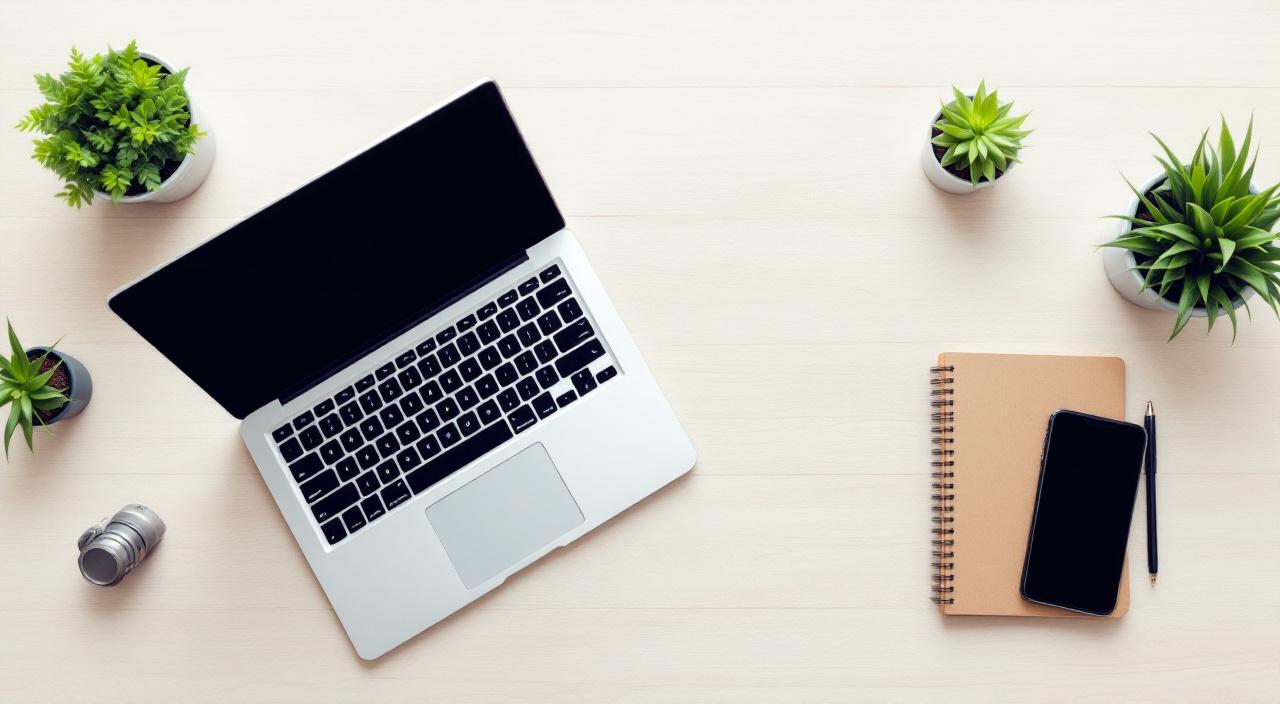
On desk: phone flat on a wooden/concrete surface, often with props (coffee, notepad, AirPods). Use for: lifestyle blogs, remote-work content, aesthetic Instagram.
Floating / isolated: phone against a plain gradient or white. Use for: App Store, clinical product shots.
Multiple phones: 3-4 phones side-by-side showing different screens. Use for: feature walkthroughs, landing pages.
For App Store submissions specifically, the flat front-on style is mandatory — Apple wants to see the screen clearly without distractions.
App Store mockup requirements
Apple's App Store has strict screenshot requirements:
- Resolution: 1290 × 2796px (iPhone 16 Plus) or 1320 × 2868px (iPhone 16 Pro Max)
- Format: JPEG or PNG, RGB, 72 DPI
- Count: up to 10 screenshots per device category
- Content: actual screenshots of your app (with optional text/design overlays)
You can upload raw screenshots or "device frames" — your screenshot placed inside an iPhone mockup image. Framed screenshots look significantly more professional and convert better, but Apple allows either.
The rounded-corner problem
Here's a subtle issue: most design tools output iPhone screenshots as flat rectangles, but actual iPhone screens have rounded corners. If you use a modern iPhone mockup template and paste a flat-rectangle screenshot, the corners of your screenshot poke out past the phone's screen boundary.
Fixing this means either:
- Round your screenshot's corners manually in Figma/Sketch to match the iPhone's radius (about 53px for iPhone 16 Pro at 2x)
- Use a mockup generator that auto-clips your screenshot to the screen shape
MockupBulk's tech mockups use per-template masks that match the actual iPhone screen shape — rounded corners, Dynamic Island cutout, everything — so your screenshot clips correctly without manual rounding.
Dynamic Island mockups
The Dynamic Island (iPhone 14 Pro onwards) is a design element you need to consider. Options:
- Ignore it: your screenshot just shows the app, Dynamic Island renders as black by default on iPhone
- Show it active: your screenshot includes a Dynamic Island notification (timer, music, activity). Much more eye-catching in marketing.
For App Store screenshots, most apps go with the ignore-it approach. For marketing materials, showing an active Dynamic Island can make your app look like it integrates with iOS at a system level.
Step by step: making an iPhone mockup
1. Export your app screenshot at the exact resolution for your target device (2x or 3x recommended).
2. Pick a mockup template. Filter by iPhone model (16, 16 Pro, etc.) and pick the style (flat front-on, in hand, on desk).
3. Upload your screenshot. The mockup engine clips it to the screen shape automatically, respecting rounded corners and Dynamic Island.
4. Optional: add text overlay. For App Store, overlay a short headline on each screenshot. "All your messages in one place" is more useful than just showing the app's home screen.
5. Generate at 3x resolution. 3x gives you 4K source files that you can downsize for any channel without quality loss.
Beyond the iPhone: the device ecosystem
If you're marketing an app, iPhone isn't enough. You also want:
- iPad mockups (for tablet-optimised apps)
- Apple Watch mockups (for apps with Watch companions)
- Mac mockups (for universal apps)
- Android mockups (if you have an Android app too)
An "entire device ecosystem" shot — iPhone + iPad + MacBook + Apple Watch showing your app on all four — is one of the most effective marketing images for a multi-platform app. It communicates ecosystem presence instantly.
Common iPhone mockup mistakes
Using an outdated device model. If your app launched in 2026, don't show it on an iPhone 12 with a notch.
Wrong resolution. Uploading a 400 × 800 screenshot to a 2796 × 1290 mockup makes your screen look blurry. Always export at 2x or 3x.
Flat-corner screenshots on modern iPhones. The rounded-corner mismatch is subtle but ruins polished mockups.
Over-staged lifestyle shots. The "iPhone on a marble desk with coffee and a succulent" aesthetic is so ubiquitous it's become visual noise. Find contexts that actually match your app's audience.
Dark mode mismatch. If your app is fully dark mode but your mockup template is a bright, light-mode environment, the contrast looks unsettling. Pick templates with matching ambient lighting.
Wrapping up
iPhone mockups are a small investment that directly compounds across every marketing asset your app or product produces. A set of 5-10 professional mockups refreshed once a year will serve you across App Store screenshots, landing page heroes, social posts, ads, and investor decks for that whole year.
If you're about to launch or relaunch an app, make iPhone mockups the first step of your marketing prep, not the last. They're the canvas everything else gets built on.
Ready to create your own mockups?
Try MockupBulk free — generate 3 mockups per month, no credit card needed.
Start free